
Features
Pick a strategy and GridGenie does the rest. Or switch the app to advanced and decide every function yourself. Below is what everything does, with the names used in the app.
Where do I find the settings?
Tap Settings at the bottom of the app. There are three tabs:
- Strategy: how the battery works, with the choice between Simple and Advanced
- Battery: the minimum and maximum state of charge (SoC)
- App: energy costs and supplier, notifications and display
Simple: choose a strategy, the system takes care of the rest. Advanced: every switch on its own, for those who want to decide. Every setting has an explanation in the app. After a change the planner recalculates.
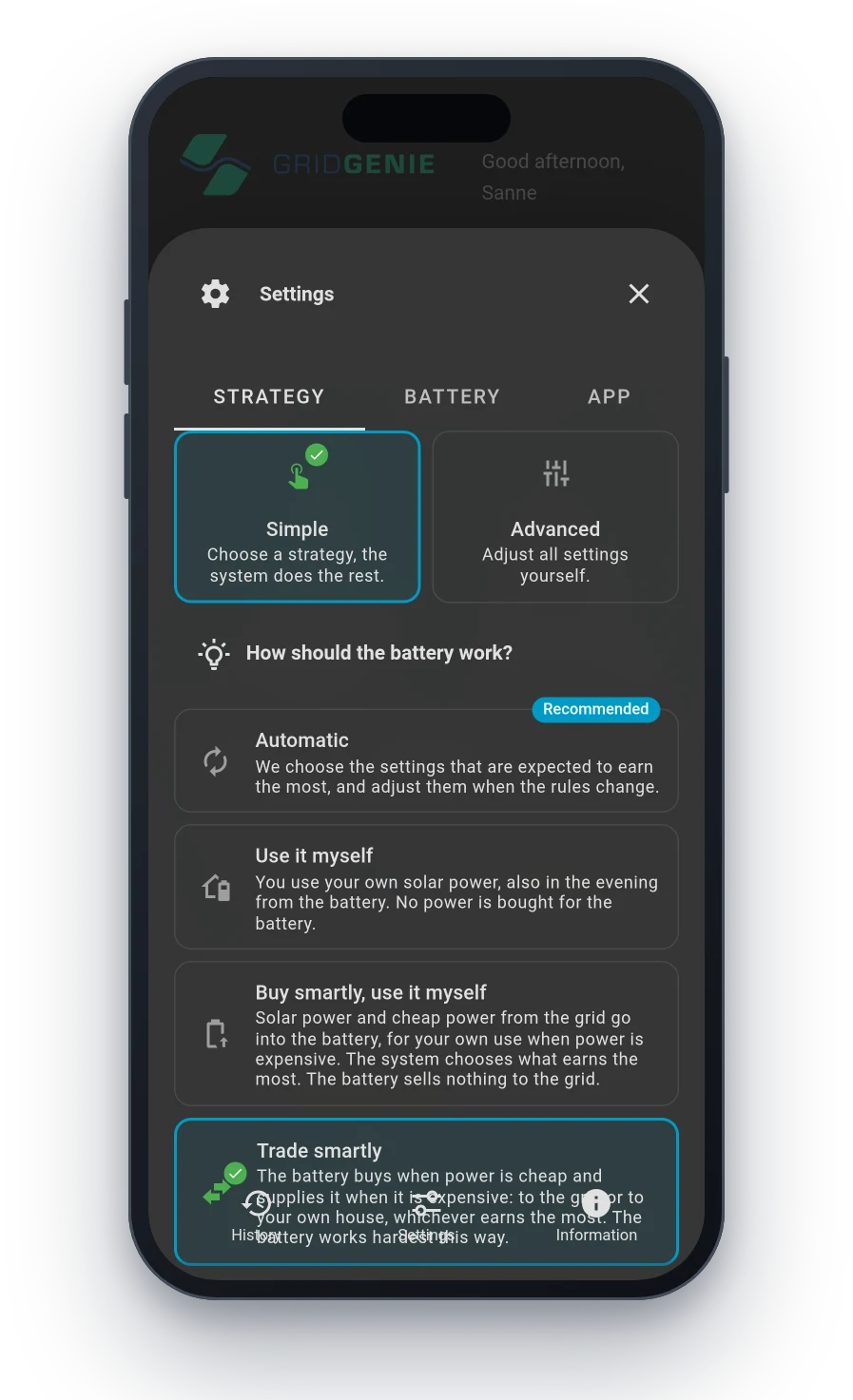
How should the battery work?
Four strategies to choose from. If you change a switch yourself in advanced mode, the choice jumps to Custom.
Automatic Recommended
We pick the settings expected to earn the most.
More information
Right now that means buying when power is cheap and selling when it is expensive, within the default limits. If the rules change, such as the end of net metering, or our default changes, your system follows by itself. If you change something yourself, it is no longer on Automatic.
Use it myself
You use your own solar power, in the evening from the battery as well.
More information
The sun goes to the home and the battery first, and once the sun is gone you use what is in the battery. The battery is not charged cheaply from the grid to trade.
Buy smartly, use it myself
Solar power and cheap grid power go into the battery, for your own use when power is expensive.
More information
The system decides what earns the most: filling the battery with your own generation, or topping up at the cheapest moments from the grid. You then use that power yourself. The battery sells nothing to the grid.
Trade smartly
The battery buys when power is cheap and supplies when it is expensive: to the grid or to your own home.
More information
Whatever earns the most. The battery works hardest here. With Minimum price difference you set how much difference there has to be between buying and selling before the battery acts on it.
On or off, independent of the strategy
Shave peaks (peak shaving)
If the home draws more from the grid than the limit you set, the battery steps in with the difference.
More information
What you draw from the grid stays below that limit, even when a lot is running at once. Useful for a small connection or a heavy load such as a heat pump or car charger.
Battery steps in from
The power in kilowatts from which the battery steps in. A good value is a little below the capacity of your connection, for example 2 kW below. Higher than your connection is not possible: the system then sets it back to the capacity of your connection.
Reserve for this
The part of the battery kept free to step in, and so not used for trading.
Note: this needs the CT clamp or Modbus meter installed behind the main switch.
Keep backup power in reserve
Keep part of the battery free for when the grid fails.
More information
If the grid fails, the inverter keeps the circuits on the backup output (the LOAD port) running on what is in the battery. With Reserve for backup power you set how much of the battery is always kept for that: the system does not use it for trading or for powering the home while the grid is there.
This setting only appears if your installation has a backup circuit on the LOAD port.
Decide everything yourself
In advanced mode you see every switch, in four groups.
Trading
Charge battery from grid
Buy energy at favourable moments, depending on the prices.
More information
Buy up to SoC
Up to what percentage the battery is charged from the grid. Set it to 50%, for example, and the rest stays free for your own solar power.
Discharge battery to grid
Sell the stored energy to the grid at a favourable moment.
More information
Sell down to SoC
Down to what percentage the battery supplies to the grid. The rest is left for your own use, or as a reserve for peak shaving.
Minimum price difference
How much difference there must be between buying and selling price before trading.
More information
It is wise to account for battery wear: a battery has a limited number of cycles, usually stated in the warranty terms. If the difference on a day is smaller, the app tells you there is no trading today.
Self-sufficient
Storing your own generation
Surplus solar power goes into the battery so the meter stays at 0.
More information
When the CT clamp or Modbus meter measures power flowing to the grid, the battery takes up exactly that amount.
At low price
Only store at the cheaper moments: when the price is below the midpoint between the lowest and highest known price. Above that, the power is sold.
Consuming from the battery
The battery discharges to cover the home’s consumption.
More information
When power flows from the grid into the home, the battery supplies exactly that amount (0 on the meter).
At high price
Only at the more expensive moments: when the price is above the midpoint between the lowest and highest known price.
Sell surplus generation
What happens to solar power you do not use and that no longer fits in the battery.
More information
On: the surplus goes to the grid at the price of that moment. Off: the inverter turns the panels down and nothing goes out. This applies to the panels on the inverter itself.
Send generation to the battery first
Where solar power goes first.
More information
Off (usually best): your generation first covers what is running in the home, and only the surplus goes into the battery, which avoids losses. On: the battery fills first.
Grid congestion
Peak shaving
The same as Shave peaks above, with the limit and reserve set yourself.
PV off at a negative price
When feeding in costs money, the inverter turns the panels down.
More information
The battery is filled first; only when nothing more fits does generation go down. As soon as the price is above zero again, the panels come back by themselves. With Based on the bare price it looks at the exchange price without surcharges. Applies only to the panels on the inverter itself.
Other
Solar forecast
The planner uses expected generation, so there is room in the battery for your own solar power.
More information
Enter peak power, orientation and tilt per panel group, for up to six groups. An east-west roof then gives two smaller peaks instead of one big one around noon. The installation wizard already asks for this.
Car and charger Preview
The car is planned in the same round as the home battery, so they do not get in each other’s way.
More information
A wizard in the app connects a Zaptec or Easee charger: you log in with the charger’s manufacturer yourself. Then you set two targets: a maximum charge level, below which it charges at the cheapest moments, and a minimum level by a set time. This is a preview: it works, but we are still improving it. Your installer prepares the charger brand.
Other generators
Panels that are not on the GridGenie inverter, such as micro-inverters or a separate inverter.
More information
The box cannot see those panels by itself. Once you add them, it calculates your consumption and generation correctly. They are only measured, not controlled.
Balancing the batteries
Once per period (30 days by default) the battery is charged to 100%, if it has not been full in that time.
More information
Balancing keeps all cells at the same voltage, so you use the full capacity and the pack lasts longer.
Dynamic charging speed
Spread charging over the cheap hours, at a lower power.
More information
On: the box adjusts the charging speed, which reduces losses because heat in the battery, cables and inverter grows with the square of the current. Off: the box charges as fast as possible in the cheapest hours.
Automation and manual control
Automation
With automation off, the system does nothing by itself and you control the battery manually.
More information
Charge now fills the battery, also from the grid. Discharge now supplies the energy in the battery to the home and the grid. A button keeps working until you tap Stop all actions or choose another button. Turn automation back on and it takes over.
Under Advanced control you set the inverter directly, with six time slots (time, target SoC, charging from the grid) and the inverter’s work mode.
Battery, tariffs and display
Minimum and maximum SoC
The range the battery works in. The minimum is at least 5%. A lower minimum gives more usable storage; also check what your battery manufacturer requires for the warranty.
Supplier
Pick your energy supplier and GridGenie calculates with the right purchase fee, energy tax and VAT. We keep those amounts up to date. Supplier not listed? Choose Other and enter them yourself.
Net metering
Until 31 December 2026 a kWh you feed in is worth as much as one you do not have to buy. Dutch net metering ends on 1 January 2027; the box then switches to the new selling price by itself.
Price interval
Per quarter hour gives a finer plan, so a short expensive or cheap moment is used on its own. Per hour is calmer and suits a contract that bills per hour.
Push notifications
A message on your phone when something needs attention, for example when the inverter does not respond or the grid fails.
Language
The app is available in Dutch, English, German and Polish. You choose the language during installation.
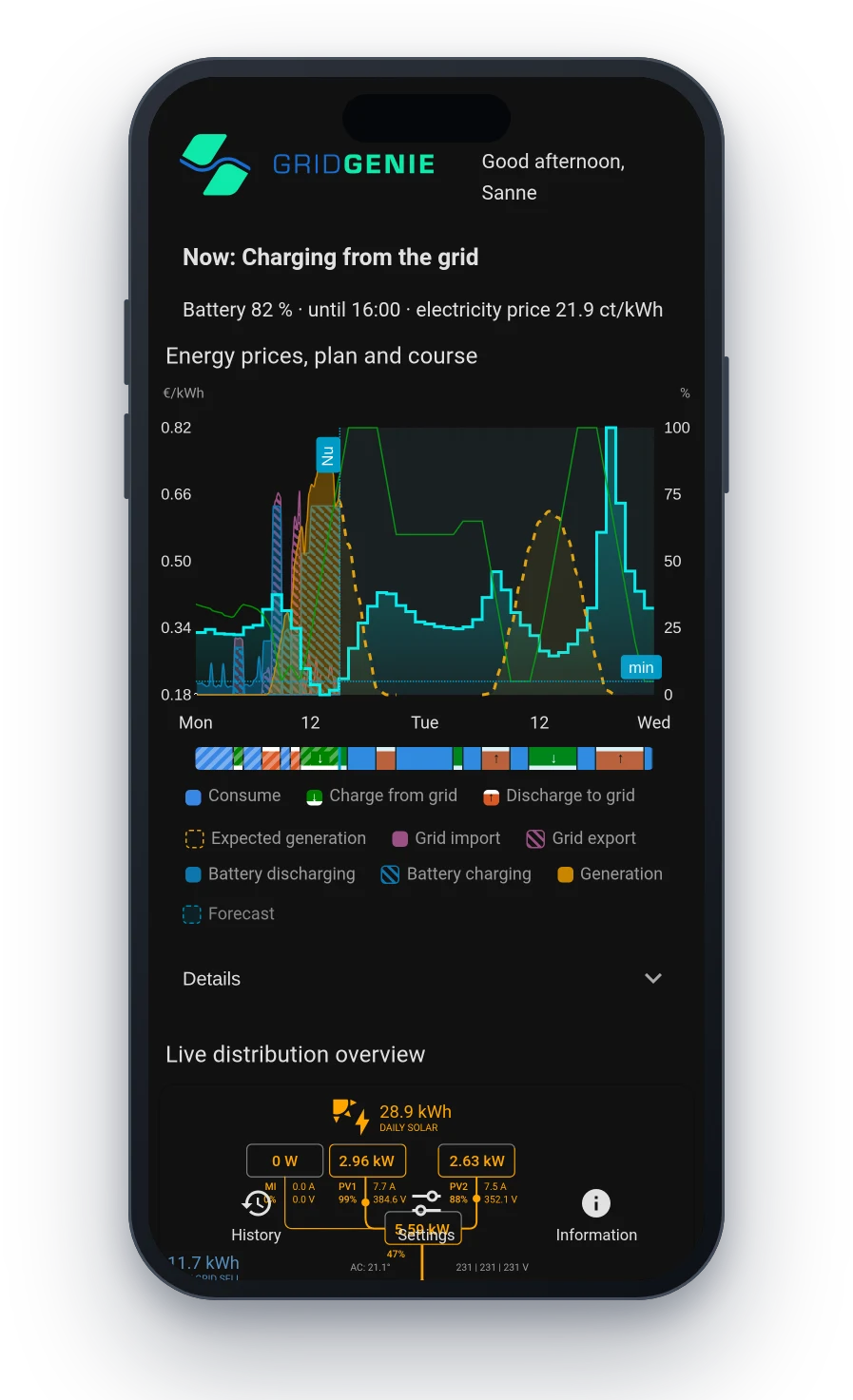
What the battery does, and what it earns
- Now: the battery’s current mode, until when, and the current power price
- Energy prices, plan and course: buying and selling price, the plan as a coloured strip, and the measured grid, battery and generation per quarter hour. Tap the legend to show or hide a line.
- Live distribution overview: energy flows between sun, battery, grid and home
- Savings from the battery: today so far, a forecast for today, and this month
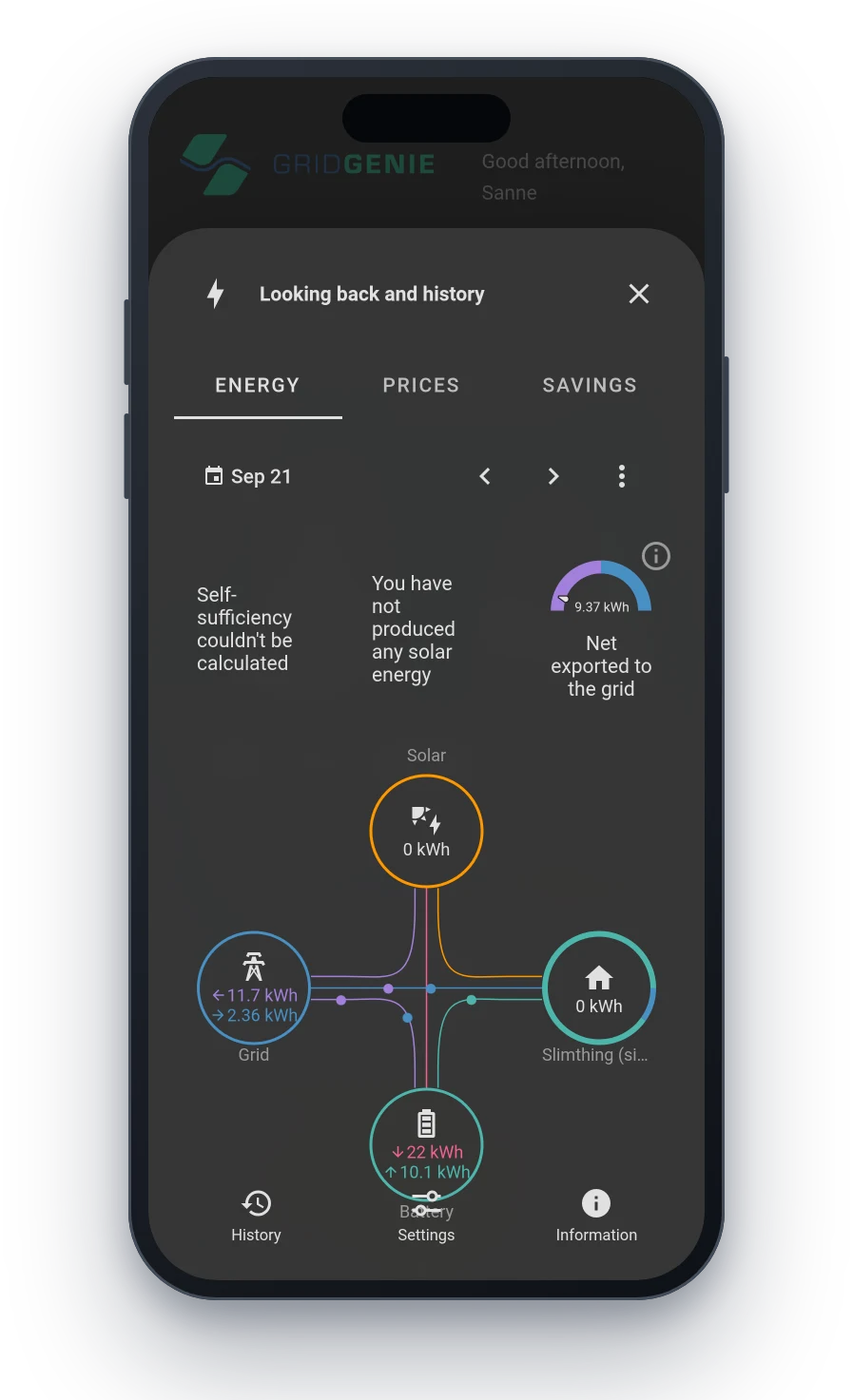
- History: energy, prices and savings per day, with a month calendar
- Information: manual, feedback, software version and checking for updates
Help shape the app
Under Information you send feedback: public, so other users can vote and reply, or private, as a conversation with our service team. We review public submissions first. You see what happens with it: not yet reviewed, will be built, in development, built, or will not be built.
Notifications in the app
- The inverter does not respond
- The grid is down, or the grid voltage is too low or too high
- Battery temperature or voltage out of range
- No trading today because the price difference is too small
- The car charger cannot be reached
Calculation and control fully on site
The schedule is calculated on the box in your meter cupboard, and the box controls your inverter directly. There is no server between your battery and the decision what it does.
Internet is only needed for energy prices, the solar forecast, updates and remote access. If the connection drops, the box keeps going on the prices it already has (at most a day and a half ahead) and then switches to using your own power, without trading. At home the app stays available.
Runs on Home Assistant
The box runs Home Assistant, the open smart home platform, and GridGenie is built into it. Switch on the Home Assistant view in the app under Settings > App and use the same box for your own devices, automations and dashboards.
What you add yourself stays in place through updates. We manage the GridGenie dashboard and the system configuration, so your battery control always keeps working.
Remote help, without a site visit
In the portal you see the GridGenie installations you sold or installed.
Look along with one click
Open your customer’s app from the portal, without a password. Only if the customer allowed it during installation, and they can change that later.
Remote configuration screen
Open the box’s setup screen from the portal; the setup code is passed along automatically.
Fault log
The inverter’s faults and warnings per box, with fault code, description and advice. The inverter does not keep this history itself; the box does.
Installer screen in the app
The inverter’s status with advice per fault, firmware, grid settings, and a maintenance mode so the resident sees you are working on it.
Notifications and updates
A notification when a box or inverter needs attention, and the status of actions such as an update. We roll out updates across all installations in small batches.
Linked automatically
If the customer enters your e-mail address during installation, the box appears in your portal. A second installer can be linked manually.
Questions about a feature?
We are happy to help you find the right settings for your situation.